How to set up email reports in the new Google Analytics
By Joel Black on 06/6/2017
The new Google analytics email reports are a little more difficult to set up than the old analytics system, but pretty straight forward if you know what you’re doing. Here is a step by step tutorial on how to set up your weekly or monthly email reports.
First, visit your Google Analytics dashboard and click the Email tab under Standard reporting. This will start your base email report with the dashboard information.
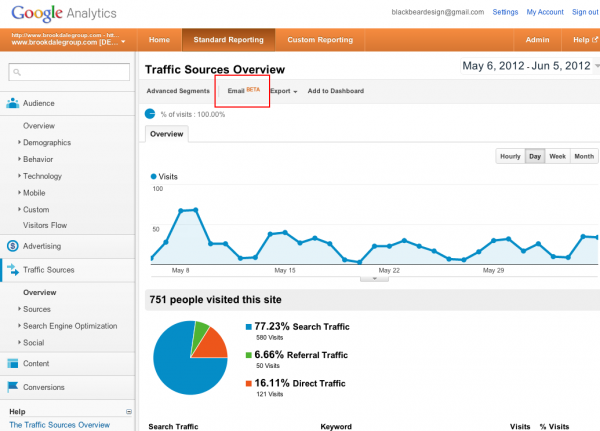
Google Analytics email dashboard
Add your email where you want to recieve the analytics report, select the format you would like the report and select the schedule. I have a PDF sent monthly shown, but you can choose a CSV file weekly if you would like. There are many options to fit your taste.
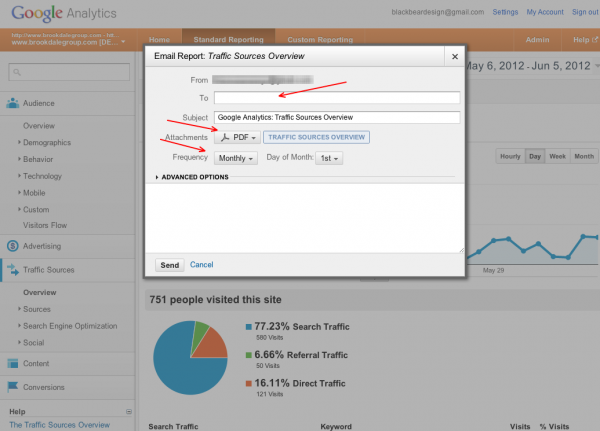
Google Analytics email setup
This will only add the dashboard report, so you will most likely want more information emailed to you. Use the navigation on the left of Analytics to go the the report you would like to add to the scheduled email. For example, go to the “Traffic Sources” and click overview. You’ll see the email tab at the top of the page. Click the email tab and when the window pops up similar to before, you’ll now see an “Add to existing email” link at the bottom right. Click the link to add to the base email you just set up.
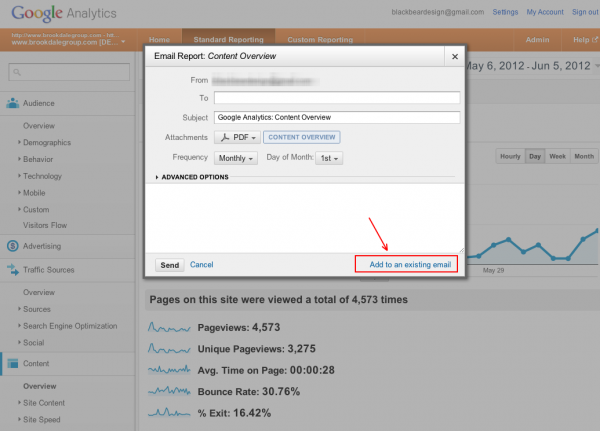
Google Analytics add to scheduled email
Now select the existing email to add this report to the existing email. Keep repeating the above step and adding needed reports to the existing email to compile all your reports into one weekly email or one monthly email. You may also have different schedules with different reports emailed.
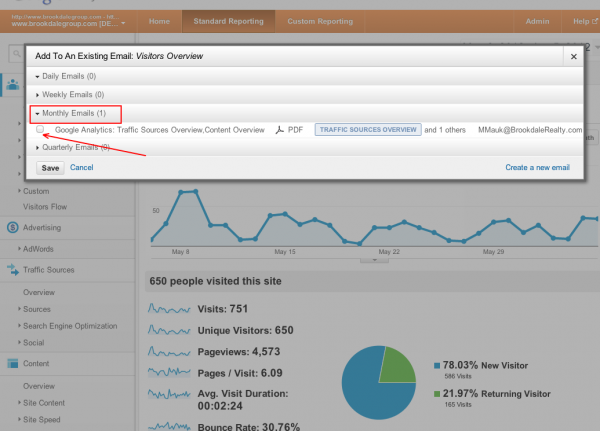
Google Analytics add to scheduled email
Google has stated they will be canceling the old reports soon. Currently there is no way to turn off the old reports in Google Analytics. The trick to turning off old Analytics reports we blogged about in the past no longer works.
If you are looking to turn off or stop the weekly email in Google Analytics, read this post to learn now.












24 responses to “How to set up email reports in the new Google Analytics”
[…] […]
So how do you delete or stop one of these new email reports from happening?
Hello mark, navigate to the Admin section, select site profile and under the Scheduled Email section, you can delete the email subscriptions.
Thanks! found this to be very useful!
i have a question, if ever we want daily traffic report from Analytics and i want traffic for week on week comparison, do we have an option for that?
Yes, what I do is build my own dashboard, then at the top right of the dashboard, select the pull down menu where the date is. There is a checkbox that says compare to …After you select ‘compare to previous period’ or whatever you want to compare, add the dashboard to your weekly email schedule.
Hello, the Google Analytics mail I get contains the data from the day before yesterday. Is there a opportunity to get an e-mail with content from last day?
For example: Today (30th of July) I got a pdf with data from 28th of July. It would be great to get the information about 29th of July.
Thanks in advance.
Hi
Very well written. Couple of questions for you.
1. When an automated GA report is set up and emailed as a scheduled PDF report it only shows the first 10 rows of data, how can it be set up to show all the rows when sent weekly etc?
2. How can you add graphics to the email text or even font formats
Good question. I’m having this problem. Shame it was never answered.
+1
You may like our tool as well. We’ve found that most people find the Google Analytics reporting emails to be too complicated and include too much information to read through. We created a tool to email you an overview of your most important information that matters whenever you want to get your reports and you can brand it so your clients don’t know we are even there.
Hello
Tell me how can i schedule email from from my gmail id
I got the answer. I have schedule email by my email id
Is there a limitation to the number of reports you can set up?
If anyone is looking for something that is easier to consume than PDF attachments, I built a service that sends really nice weekly overview emails:
https://briefmetrics.com/
Briefmetrics has a nice cross-section of your most important Google Analytics reports including a monthly pacing chart and week-over-week data changes. Really handy for noticing new referrals, for example. There is zero configuration, just sign in with Google Analytics and off you go!
If you have some feedback, would love to hear it. 🙂
Thanks for this useful suggestion
Hello Joel!
It’s been a long time and I hope you are still around XD.
I have a question and I was hoping you could help me.
I want to receive an email with the current day/week/month compared to the previous year (day/week/month).
Is that possible?
Thanks and cheers 🙂 bye
Great post, thanks for sharing. This is a really nice feature of Google Analytics. One thing I do wonder is; for daily reports – at what time will they be sent out?
Super simple! Thanks for the useful screengrab at the top.
Hello,
I need some help and was told by a customer to come here. I work at a restaurant and there are three different locations (that are all owned separately) and for some reason when you search boneyard farmington hills, the dearborn heights location menu shows up. This causes a lot of confusion with customers and pricing.
what is the limitations on email ids that can be added in scheduled reports in google analytics ?
Can i send a specific report to 100 users ?
You can also use a tool like http://www.ninjareports.com to create custom email reports in analytics
Hello,
Can you schedule reports to be sent at specific times on certain days / weeks etc? Or is it functionality not available?
Thanks
Thanks for sharing great info. Actually i don’t know the how to set up email. I get the right information on this blog. very helpful blog. You have written very well.